Making a bootable USB from an .iso image on Mac OS X
updated 11 November 2015Most bootable ISO images are designed to be burned to a CD-ROM. This guide walks through copying one onto a USB key instead, so any machine that boots from USB can use it the same way it would a disc.
Note: Intel-based Apple machines have an EFI BIOS that cannot boot USB keys. This process does not work for installing OS X onto Apple hardware.
Prepare the USB Drive
The first step wipes the partition structure on the USB key. This destroys all data on the key.
Open Disk Utility (located at /Applications/Utilities/).
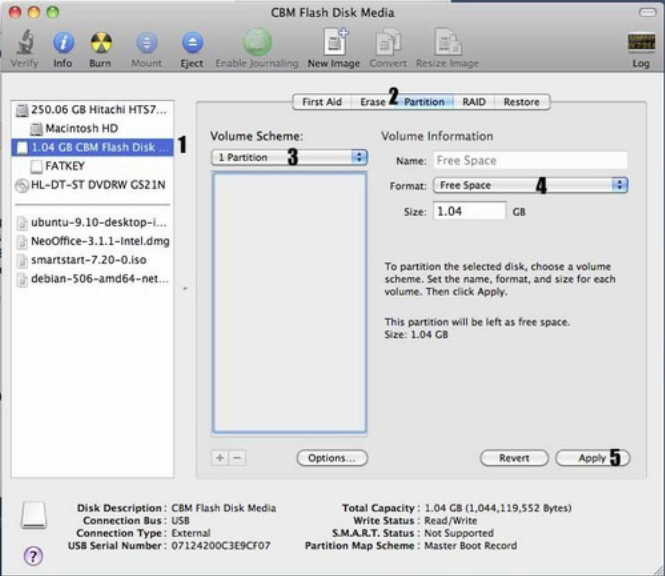
Then do the following:
- Select the USB key (select the root device, not its partitions)
- Select the Partition tab at the top
- Change the Scheme to 1 Partition
- Change the Format to Free Space
- Click Apply
A confirmation dialog will appear before any data is deleted. Click Partition to proceed. Quit Disk Utility once it finishes.
Wiping the drive ensures the USB key is in a known state and that OS X has not auto-mounted any of its volumes. You can skip this step if you unmount the volumes yourself first.
Preparing the ISO image
Convert the ISO to a Read/Write Universal Disk Image Format (UDRW) that can be written to the drive. The example here uses a Debian 7.1.0 net install ISO, but the process works for any ISO file.
hdiutil convert -format UDRW -o debian-7.1.0-amd64-netinst.img debian-7.1.0-amd64-netinst.iso
The command creates the .img file at the output path. hdiutil appends a .dmg suffix automatically, so the output file will likely be named debian-7.1.0-amd64-netinst.img.dmg.
Copy the image to the USB key
Run diskutil list to identify the USB key’s device node:
diskutil list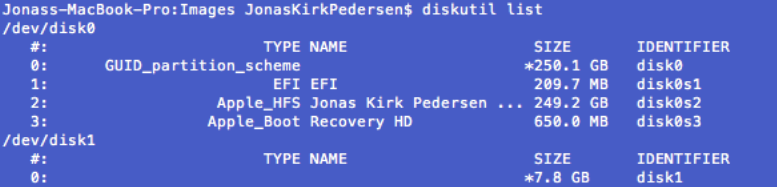
In this example the USB key is /dev/disk1.
Use the raw disk device (/dev/rdisk1 instead of /dev/disk1) to bypass the buffer layer and copy significantly faster. Also specify a block size of 1m for another speed boost.
dd if=debian-7.1.0-amd64-netinst.img.dmg of=/dev/rdisk1 bs=1m
dd reads from the input file (if=) and writes to the output device (of=) block by block. Once the command completes, the USB key is ready to boot.