Basic Management Of LDAP Users
updated 22 March 2015This post builds on the LDAP installation guide. Before reaching for a web interface, working with the command-line tools directly builds a solid understanding of how LDAP operates. Three commands cover the basics:
ldapaddldapsearchldapmodify
This post covers ldapadd and ldapsearch. The basic invocation for ldapadd is:
ldapadd [OPTIONS] [CREDENTIALS] filenameAn LDIF file populates the LDAP database with users and groups.
Users and Groups
Start by adding two Organizational Units: Users and Groups. Create a file named ou.ldif:
nano /etc/ldap/ou.ldifdn: ou=Groups,dc=kirk
ou: Groups
objectClass: top
objectClass: organizationalUnit
dn: ou=Users,dc=kirk
ou: Users
objectClass: top
objectClass: organizationalUnitAdd both OUs with ldapadd:
ldapadd -x -D cn=admin,dc=kirk -W -f ou.ldifOutput:
adding new entry "ou=Groups,dc=kirk"
adding new entry "ou=Users,dc=kirk"
Next, add a user entry. Create users.ldif:
nano /etc/ldap/users.ldifdn: cn=JKP,ou=Groups,dc=kirk
cn: JKP
gidNumber: 5000
objectClass: posixGroup
dn: uid=JKP,ou=Users,dc=kirk
uid: JKP
uidNumber: 5000
gidNumber: 5000
cn: Jonas Pedersen
sn: Pedersen
objectClass: posixAccount
objectclass: organizationalPerson
loginShell: /bin/bash
homeDirectory: /home/JKPField meanings:
uid= usernamecn= common namesn= surname
ldapadd -x -D cn=admin,dc=kirk -W -f users.ldifOutput:
adding new entry "cn=JKP,ou=Groups,dc=kirk"
adding new entry "uid=JKP,ou=Users,dc=kirk"
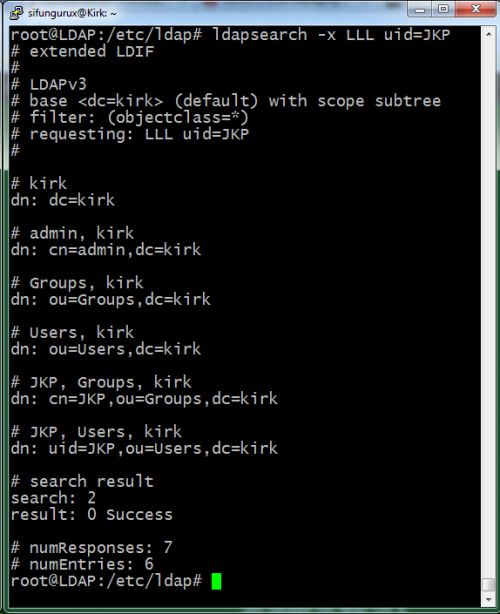
Verify the entries landed in the LDAP server:
Adding a Client to the Mix
Most guides for this step predate 2014, when the LDAP service structure changed. The package to install is libpam-ldapd, which pulls in:
libnss-ldapdnscdnslcd
apt-get install -y libpam-ldapdThe installer prompts for three things:
- LDAP server address
- Distinguished Name
- Services to configure
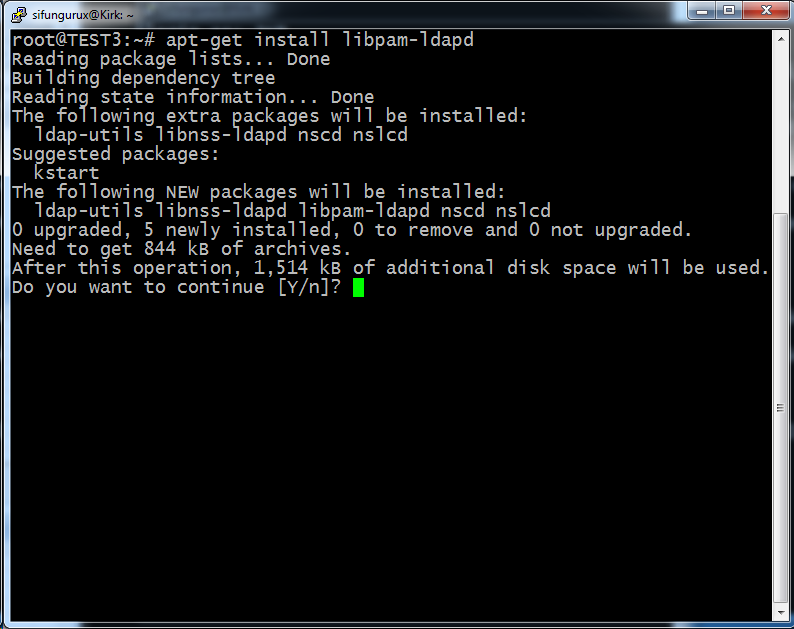
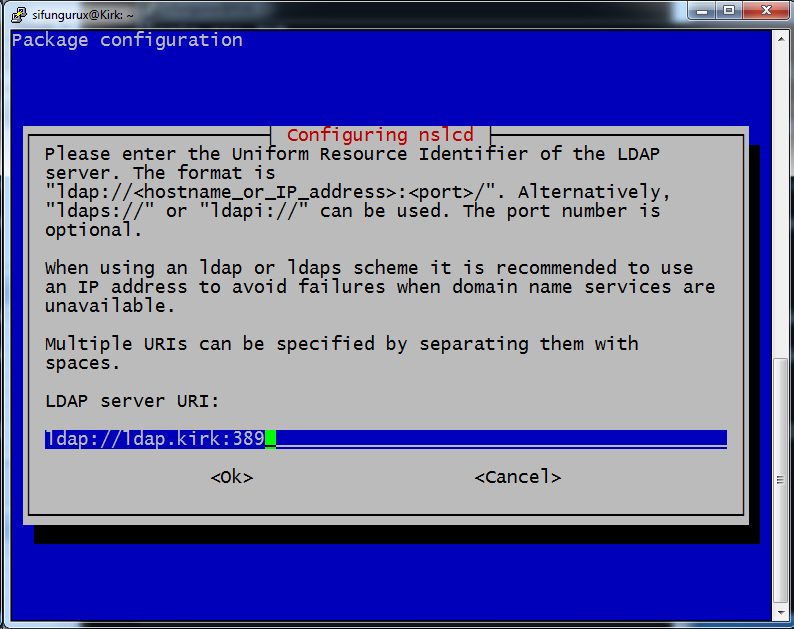
If you have working DNS, use the hostname instead of an IP address. Without it, add two URIs to the configuration: one with the hostname and one with the IP as a fallback.
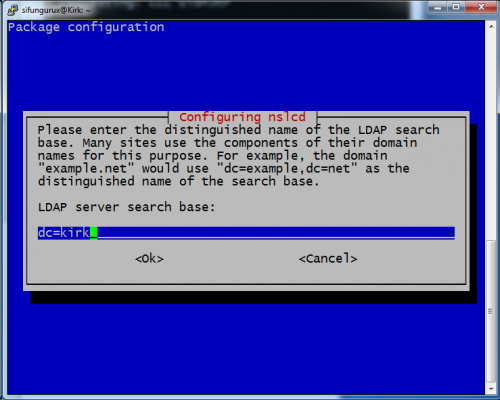
The domain is *.kirk, so set the domain container to dc=kirk:
Choose which services LDAP should support. This setup uses group, passwd, and shadow:
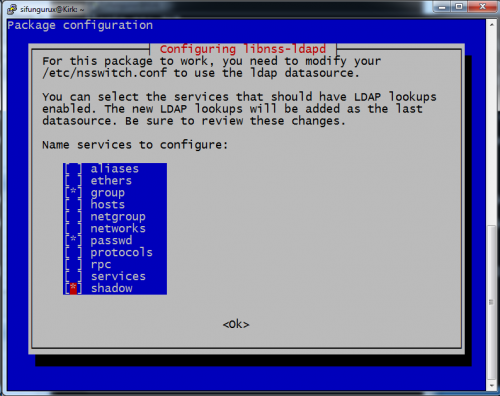
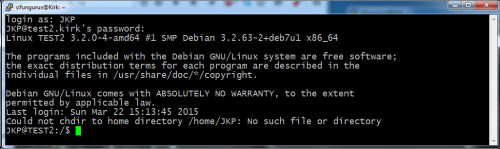
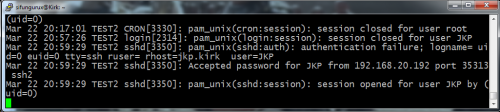
Press OK. The services restart and LDAP login becomes available. The first screenshot below shows the login screen; the second shows the output of tail -f /var/log/auth confirming a successful authentication:
This configuration is intentionally minimal. Security hardening and encryption between client and server are outside the scope of this post.