Adding SUDO to LDAP
updated 31 May 2015LDAP can serve sudo rules to client machines, giving you centralized control over who can run what on which hosts. This post assumes a running LDAP server with GOsa. For setup, see the other posts in this series.
LDAP Server Setup
Install the GOsa sudo plugin and schema, then restart Apache:
apt-get install gosa-plugin-sudo gosa-plugin-sudo-schema
service apache2 restart
Create a new sudo rule in GOsa:
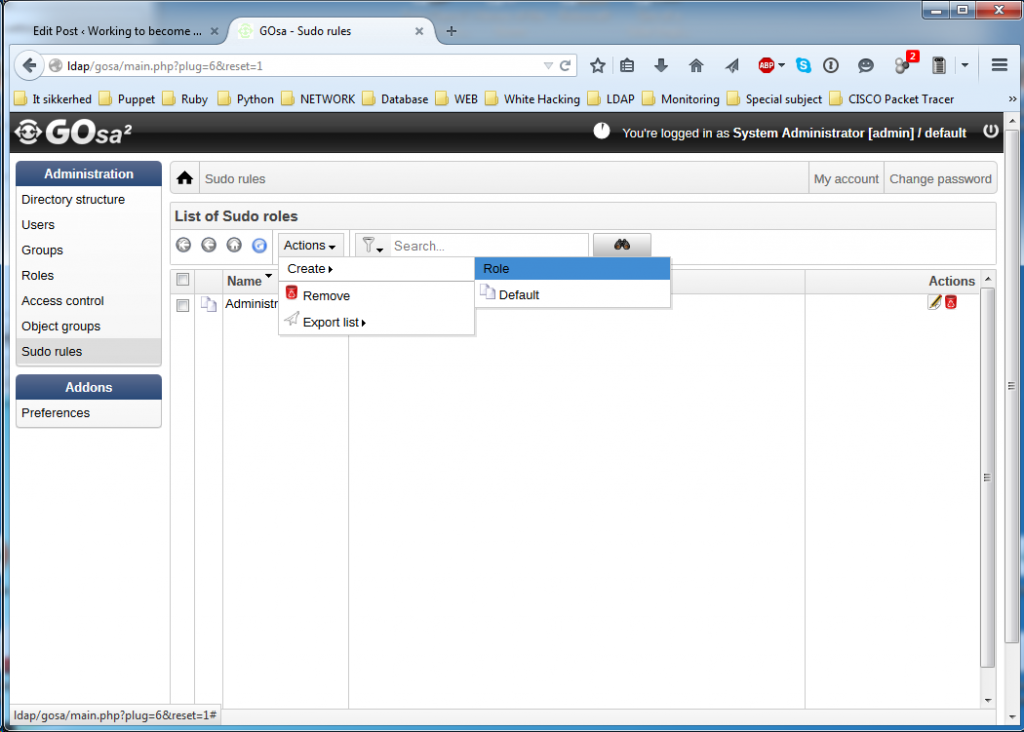
The rule form looks like this:
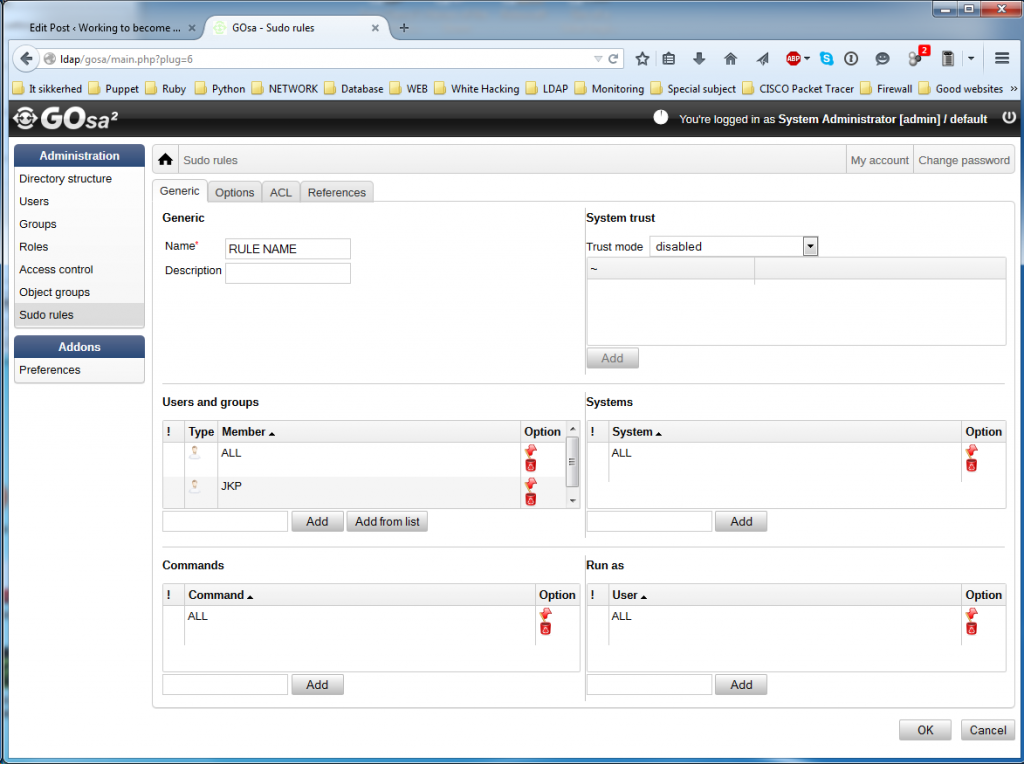
Fill in the fields:
- Name: A name that communicates the purpose and audience at a glance.
- Description: A short explanation with more detail.
- Users and Groups: The user or group the rule applies to.
- Command: The commands the user or group may run. Use
ALLfor administrators. - Run As: Defines which user the command runs as. Worth investigating further.
Click OK. The server side is done.
Client Preparations
Install sudo with LDAP support:
apt-get install sudo-ldapOpen the sudo LDAP configuration file:
nano /etc/sudo-ldap.confAdd the sudoers base DN:
sudoers_base ou=SUDOers,dc=kirk,dc=localThe files /etc/ldap.conf and /etc/sudo-ldap.conf should be symbolically linked. If the link is missing, create it:
sudo ln -s /etc/ldap.conf /etc/sudo-ldap.confOpen /etc/nsswitch.conf and add the following line at the bottom:
sudoers: ldapRestart the name service cache daemon and the LDAP client daemon, then test:
service nscd restart
service nslcd restart